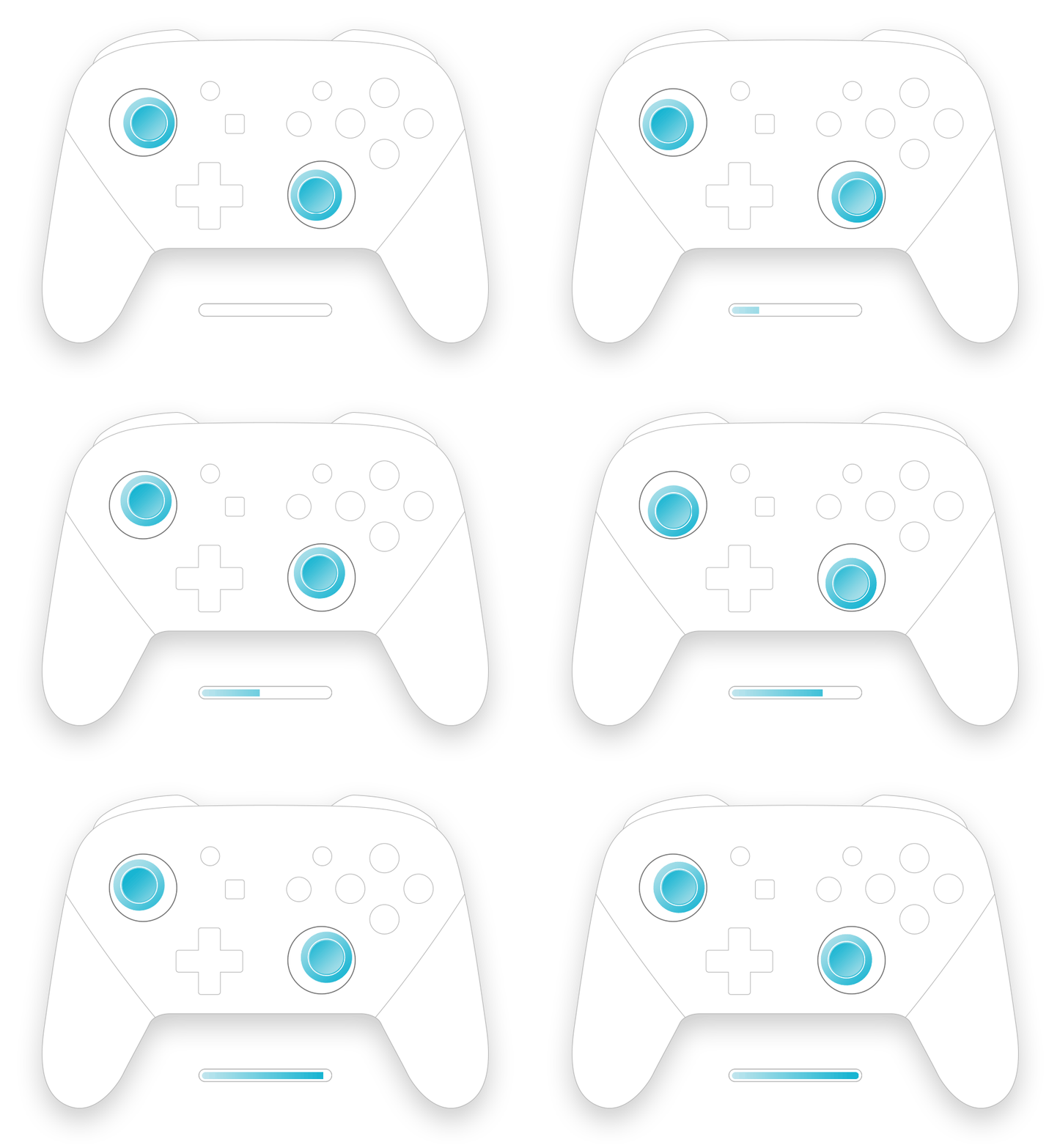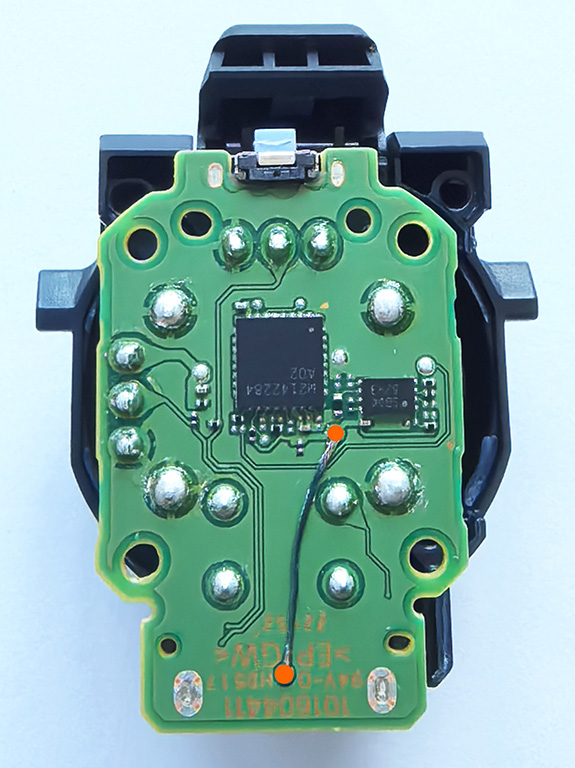
Connect your controller and press buttons to begin...
● Controllers supported for function testing:
GuliKit full series controllers, Microsoft Xbox One, Xbox Series, Xbox Elite series controllers, Sony PS4 Dual Shock, PS5 Dual Sense & Dual Sense Edge controllers, Nintendo Switch Pro controllers, and controllers compatible with the Xinput protocol.
● Supports testing on PC with USB wired connection or Bluetooth wireless connection.
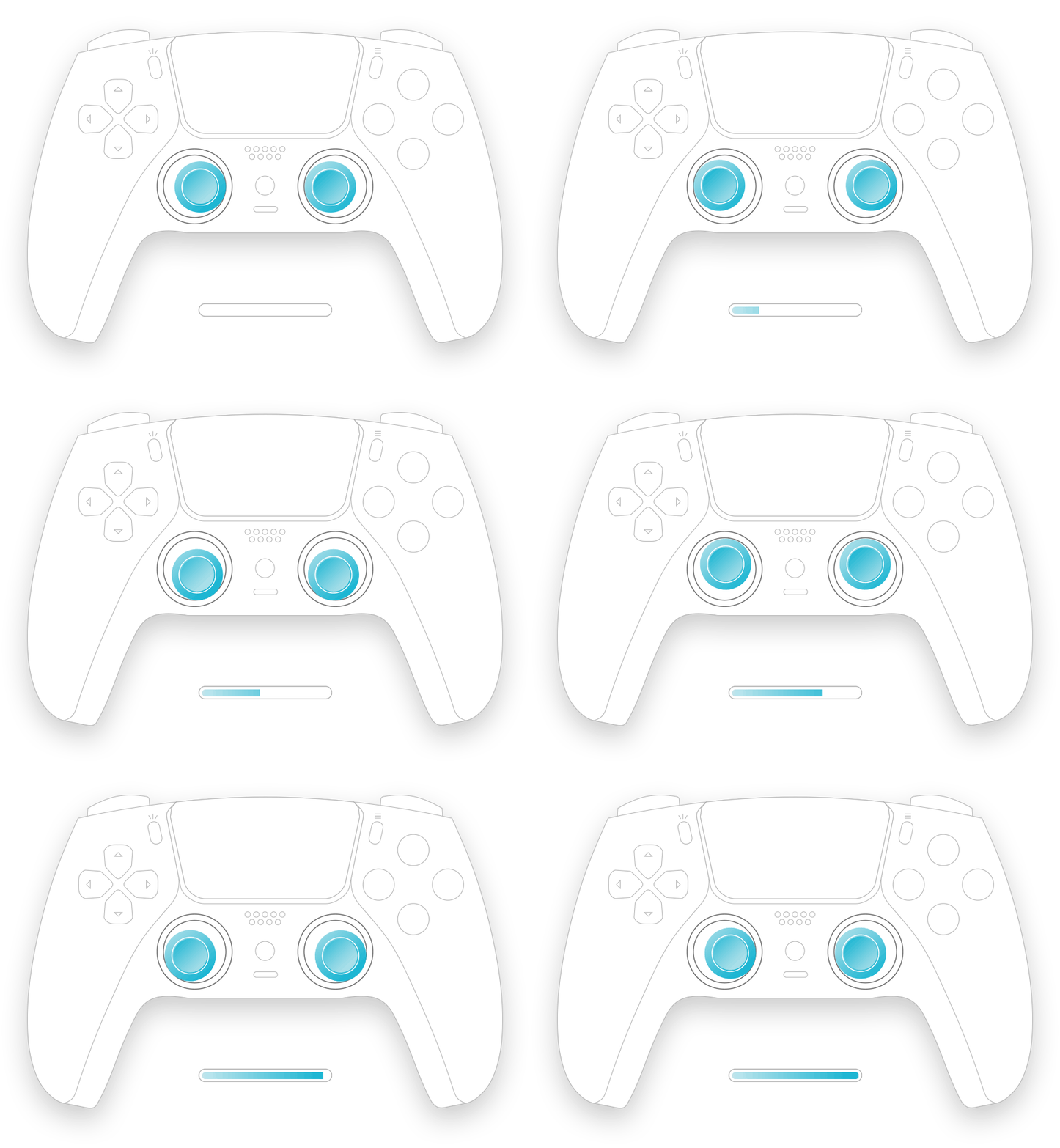
● Supports joystick step test to test the joystick's maximum resolution.
● A USB wired connection is required for PS5 Dual Sense and Dual Sense Edge controllers, when testing vibration, triggers' force feedback, indication lights of touchpad, user and microphone.
For lighting tests, click the corresponding area with the left mouse button.
● Because Firefox browser does not support vibration testing, please use Edge or Google Chrome for vibration testing.
● Controllers supported for joystick calibration:
PS4 Dual Shock, PS5 Dual Sense & Dual Sense Edge controllers, Switch Pro controllers.
A USB wired connection is required for joystick calibration.
By using GuliKit online calibration tool to calibrate Switch Pro controller, the inaccurate joystick centering issue can be avoided for Switch Pro controller used on PC when calibration is only run on the Switch console.
● Fine-tuning mode is supported, suitable for professional players who need more precise joystick calibration.
● Only original controllers above are supported for joystick calibration.
Frequently Asked Questions
1. Why can't the APG(Auto Pilot Gaming) key, Setting key, and Screenshot key be tested on GuliKit controller in PC mode?
These keys are special function keys added by GuliKit, and there are no definitions for these keys in the standard XInput protocol, so they cannot be tested directly.
You can set the GuliKit controller to Switch mode to test the Screenshot key and Home key.
The Setting key can be tested by setting special functions through a combination of keys, and the controller will provide a vibration alert in response.
2. What mode should the GuliKit controller be tested in?
It is recommended to use Windows XInput mode for testing.
3. Can multiple controllers be tested simultaneously?
Currently, up to 4 controllers can be tested simultaneously.
4. Why doesn't the browser display the calibration button icon when you want to calibrate PS4 Dualshock and PS5 Dualsense controllers?
You may have opened the test page before, so the browser has a cache record, just press CTRL+F5 to refresh the page and check again.



1